A Complete Beginner’s Guide to Building a Website with WordPress
December 3, 2025
So, you’ve decided you want to build a website. That’s a fantastic first step! In today’s digital world, a website is essential for a business, a professional portfolio, or even just a personal blog. The good news is that you no longer need to be a coding wizard to create a beautiful, functional site. Thanks to platforms like WordPress, anyone can do it.
WordPress is a Content Management System (CMS) that powers over 40% of all websites on the internet. It’s popular for a reason: it’s powerful, flexible, and surprisingly beginner-friendly.
This guide will walk you through every step of building your very first website using self-hosted WordPress (WordPress.org), which gives you complete control and ownership over your site.
A Domain Name: This is your website’s address on the internet (e.g., myawesomeblog.com). It’s how people will find you.
Web Hosting: This is the “land” your website “house” will be built on. It’s a service that provides server space to store all your website’s files (images, text, code) and make them accessible to visitors 24/7.
You cannot have a website without both. A domain name typically costs around $10-15 per year, and basic web hosting can range from $3 to $10 per month.
For beginners, the easiest path is to choose a hosting provider that specializes in WordPress. Many, like Bluehost, SiteGround, or Hostinger, offer “one-click” WordPress installation, which automates the entire setup process. Many also include a free domain name for your first year, making it a great all-in-one package.
Go to a provider’s website, choose a basic hosting plan, and follow the steps to register your chosen domain name.
Step 2: Install WordPress
Once you have your hosting and domain, it’s time to install WordPress. If you chose a host with a WordPress-specific plan, this is incredibly simple.
Most hosting dashboards have a “one-click install” or “WordPress installer” button. You’ll just need to:
Click the “Install WordPress” button.
Select the domain you just registered.
Enter your desired Site Title (e.g., “My Awesome Blog”).
Create an admin username and a strong password. (Do not use “admin” as your username).
Click “Install.”
That’s it! In a minute or two, the hosting company will set up the WordPress software on your server. You can then access your site’s admin panel by going to http://yourdomain.com/wp-admin. Log in with the credentials you just created.
Step 3: Explore the WordPress Dashboard
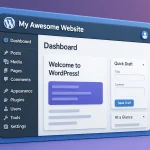
Welcome to your command center. The WordPress dashboard (or “backend”) is where you’ll manage everything. It might look a little intimidating at first, but you’ll quickly get used to the main sections on the left-hand menu:
Dashboard: Your homepage with “at a glance” info.
Posts: Where you write and manage blog articles.
Pages: Where you create static pages like “About” or “Contact.”
Appearance: Where you change your site’s design (themes) and customize it.
Plugins: Where you add new features (like “apps” for your site).
Settings: Where you configure your site’s title, tagline, time zone, and more.
Step 4: Choose and Customize Your Theme
A “theme” is the design and layout of your website. It controls the look, feel, and style—from colors and fonts to how your content is displayed. WordPress has thousands of free and paid (premium) themes.
To start, let’s use a free one.
In your dashboard, go to Appearance > Themes.
Click the “Add New” button at the top.
You can browse thousands of free themes. You can filter by “Popular” or search for keywords (e.g., “blog,” “portfolio,” “business”).
When you find one you like, hover over it and click “Install,” then “Activate.”
Once activated, you can customize it. Go to Appearance > Customize. This will open the “Customizer,” a live editor where you can change things like your site’s logo, title, tagline, colors, and menu layout. Play around with the options—you can see your changes in real-time before you hit “Publish.”
Step 5: Create Your First Essential Pages
Now it’s time to add content. In WordPress, there are two main content types:
Posts: Timely articles, usually for a blog. They appear in reverse-chronological order.
Pages: Static, “evergreen” content that doesn’t change often.
Almost every website needs a few key pages:
Homepage: The front door to your site.
About Page: To tell visitors who you are.
Contact Page: A way for people to get in touch.
Let’s create an “About” page:
Go to Pages > Add New.
Give your page a title: “About Me” or “About Us.”
In the main content area (the “Block Editor”), you can start typing. Each paragraph, heading, or image is its own “block.”
Add some text describing yourself or your business.
Click the “Publish” button in the top-right corner.
Repeat this process to create a “Contact” page and a “Homepage.”
Pro-Tip: By default, WordPress shows your latest blog posts on the front page. To set your “Homepage” page as the front page, go to Settings > Reading. Under “Your homepage displays,” select “A static page” and choose the “Homepage” you just created from the dropdown menu.
Step 6: Install Essential Plugins
Plugins are pieces of software that add new functionality to your site. This is where WordPress truly shines. There are plugins for everything: e-commerce, contact forms, security, performance, and more.
To install a plugin, go to Plugins > Add New and search for it. Here are a few must-haves for beginners:
SEO (Search Engine Optimization):Yoast SEO or Rank Math. These help you optimize your content to rank better on Google.
Contact Form:WPForms or Contact Form 7. You’ll need this to add a contact form to your “Contact” page.
Security:Wordfence Security or Sucuri Security. These add a firewall and scan for malware to protect your site from hackers.
Performance/Caching:WP Super Cache or W3 Total Cache. These help your site load faster for visitors.
Don’t go overboard—too many plugins can slow your site down. Start with these essentials.
Step 7: Launch and Maintain Your Site
Once you’ve customized your theme, created your pages, and added content, you’re ready to “go live” (which you already are, but now you’re ready to share it!).
Building your site is the first step; maintaining it is an ongoing process. Make it a habit to:
Update: Regularly update your WordPress core, themes, and plugins from the “Updates” section of your dashboard. This is crucial for security.
Backup: Set up a regular backup (many hosting providers offer this, or you can use a plugin like UpdraftPlus).
Add Content: Keep your site fresh by adding new blog posts or updating your portfolio.
Congratulations! You’ve successfully built your first WordPress website. It may seem like a lot, but by following these steps, you’ve laid a solid foundation for a powerful and professional online presence.